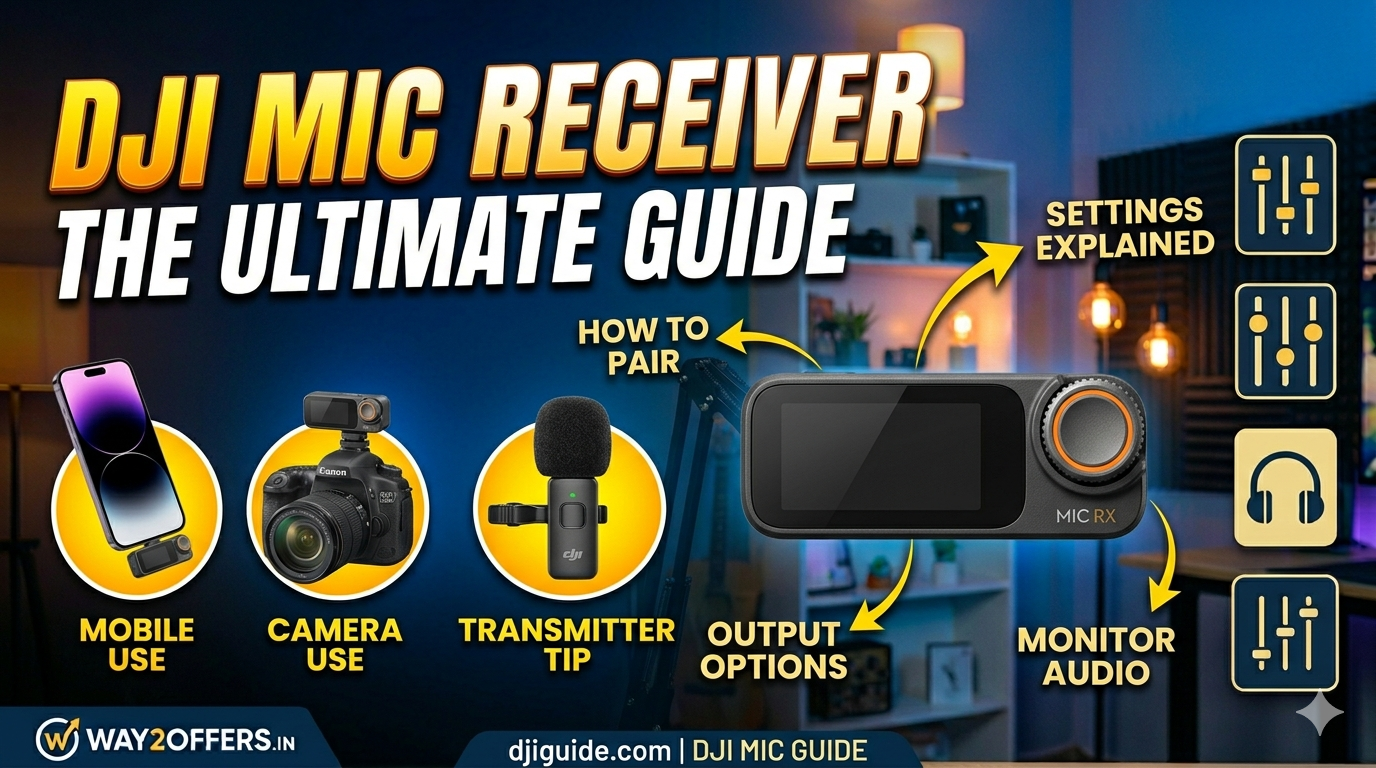
Master Your Audio! — Confused about how to set up your DJI Mic? This guide covers everything about the DJI Mic Receiver, including pairing transmitters, connecting to cameras/phones, and troubleshooting. ⏰ Get professional audio in minutes!
🎙️ DJI AUDIO – Complete Setup Guide
DJI Mic Receiver: The Ultimate Guide
Pairing | Connectivity | Touchscreen Controls | Troubleshooting
Setup Guide
⚡ Works with DJI Mic 1 & Mic 2 Series
⏰ Plug and Play Design
✅ Definition: The central unit that receives audio signals from the clip-on transmitters.
✅ Design: Acts as a Charging Case (Gen 1) or a standalone Receiver (Mic 2) with a touchscreen.
✅ Outputs: Connects to Cameras (3.5mm), Smartphones (USB-C/Lightning), and PCs.
✅ Display: Shows audio levels, battery status, and recording time.
✅ Range: Stable transmission up to 250 meters (820 ft).
💡 Tip: The receiver charges the transmitters when docked, ensuring you never run out of battery!
📊 Receiver Ports & Buttons
| Component | Function |
|---|---|
| 🔌 3.5mm Output Port | Connect to DSLR/Mirrorless Cameras (TRRS cable). |
| 📱 USB-C / Lightning Port | Connect directly to Smartphones for digital audio. |
| 🔊 Speaker | Plays back recorded audio for monitoring. |
| 🖥️ Touch Screen (Mic 2) | Adjust gain, mute, and view channel info. |
| 🔘 Power Button | Turn receiver ON/OFF or pair transmitters. |
⚙️ How to Set Up the Receiver
Step 1: Power On
Press and hold the power button on the side of the receiver until the screen lights up. If using the charging case model, open the lid.
Step 2: Pair Transmitters (If needed)
Usually, they are pre-paired out of the box. If not, press the pairing button on the receiver, then turn on the transmitter. They will link automatically within seconds.
Step 3: Connect to Your Device
For Cameras: Plug the 3.5mm cable into the “Mic In” port of your camera.
For Phones: Use the dedicated USB-C or Lightning adapter plug on the bottom of the receiver.
Step 4: Set Audio Levels
Use the touchscreen (Mic 2) or physical buttons to adjust Gain. Aim for peaks around -12dB to prevent distortion (clipping).
🛠️ Troubleshooting Common Issues
❌ No Sound / Noise Issues?
- Check Cable: Ensure the 3.5mm cable is fully inserted. Use the TRS cable provided by DJI, not a standard headphone cable.
- Camera Settings: Set your camera’s “Mic Input” to External Mic, not Internal.
- Frequency Interference: If you hear static, use the “Channel Switch” feature in the menu to find a cleaner frequency.
- Low Volume: Increase “Gain” on the receiver screen or set Mic Sensitivity to “High” (+6dB or +12dB).
🛒 Buy DJI Mic System
Looking to buy? Check the best prices on Flipkart:
|
DJI Mic Wireless System Receiver + 2 Transmitters | Charging Case Professional Audio Wireless Range: 250m 🎬 Vlogging | 📹 Filmmaking | 🎙️ Streaming |