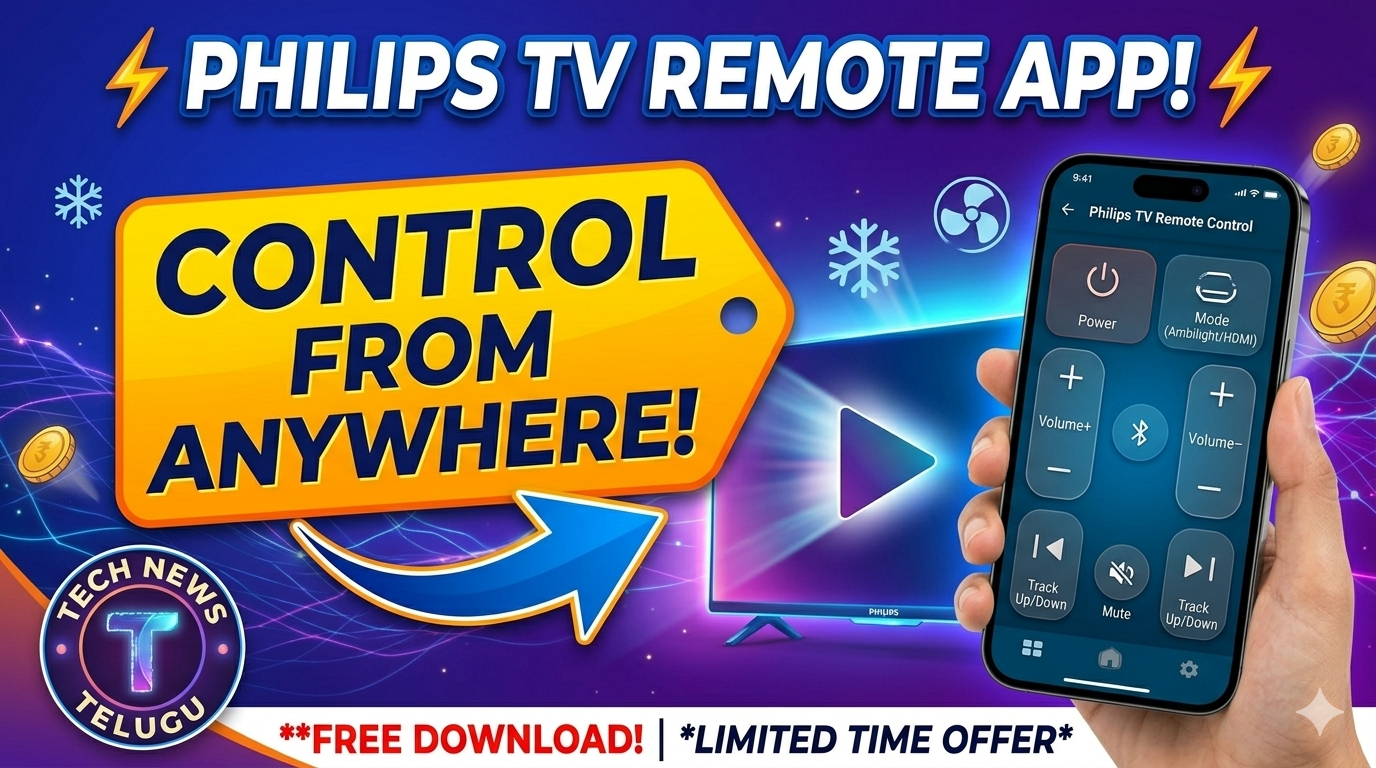
Control Your Philips TV with Your Phone! — Lost your remote? Download the Philips TV Remote App to control power, volume, and channels instantly. Works via WiFi for Smart TVs and IR for older models. ⏰ Free download — Setup in seconds!
📺 PHILIPS SMART TV – Remote Control
Philips TV Remote App (Official & IR)
Power | Volume | Channels | Ambilight | Smart Apps
FREE on Android & iOS
⚡ Works with Android TV & Net TV
⏰ No more searching for remotes!
✅ Official App: “Philips TV Remote App” for Android TV & Net TV.
✅ Smart Features: Launch Netflix, YouTube, Prime Video directly.
✅ Ambilight Control: Adjust Ambilight settings (for supported models).
✅ Keyboard: Type passwords and search easily using your phone keypad.
✅ IR Remote: Use apps like “Mi Remote” for older non-smart Philips TVs.
💡 Tip: For the official app, ensure your Phone and TV are connected to the same WiFi network.
📊 Top Remote Apps for Philips TV
| App Name | Type | Best For |
|---|---|---|
| Philips TV Remote App | WiFi | Smart Android TVs & Net TVs |
| Mi Remote / Peel | IR Blaster | Older Non-Smart CRT/LCD TVs |
| Android TV Remote | WiFi | Generic Android TV Models |
📲 Detailed App Reviews
1. Philips TV Remote App (Official)
🏆 Official App WiFi Control
This is the official app developed by TP Vision. It works seamlessly with Philips Smart TVs (Android TV & Net TV). You can use your phone as a fully functional remote, launch apps, and even control the unique Ambilight feature. The app also includes a “Soft Keyboard” for easy typing.
Requirement: TV and Phone must be on same WiFi network.
2. Mi Remote Controller (For IR)
💰 Free IR Required
If you have an older Philips TV (CRT or non-smart LCD) that does not have WiFi, you need an IR Blaster app. Mi Remote has a vast database of Philips IR codes. It works instantly on phones with an IR sensor (like Xiaomi, Redmi, POCO).
Requirement: Phone with Infrared (IR) Blaster.
⚙️ How to Connect (Official App)
Step 1: Connect to WiFi
Ensure your Philips Smart TV and Smartphone are connected to the same WiFi network.
Step 2: Open the App
Open the “Philips TV Remote App”. It will automatically scan for available Philips TVs on the network.
Step 3: Pair & Control
Select your TV model. A PIN might appear on the TV screen—enter it in the app to pair. You are now ready to control!
1. Check if the TV is ON (not in standby).
2. Verify both devices are on the same WiFi frequency (e.g., both on 2.4GHz).
3. Restart the TV and the app.
🛒 Need a Physical Remote?
If your TV is old (no WiFi) and your phone doesn’t have an IR blaster, apps won’t work. You can buy a replacement remote online.
🛒 Buy Remote on Flipkart
👉 Check Myntra
|
Philips TV Remote App Official Control | WiFi & IR Support Free Download Works with Smart & Old TVs 📺 Smart Control | 🔊 Volume | 📺 Channels |